
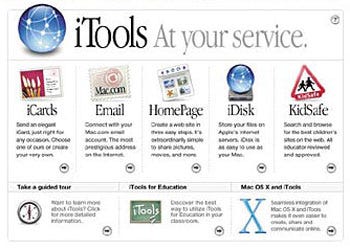
How many of you remember iTools? Apple laid the foundation for its cloud-based services, now known as iCloud, back in 2000. At the time, it was called iTools. It included services such as @mac.com email, iDisk cloud storage, and HomePage for creating and publishing websites.
The cloud services that began with iTools, continued with MobileMe, and evolved into iCloud are fundamentally based on Apple Accounts (formerly known as Apple IDs). With an Apple Account, you can sign in to your devices and take advantage of various Apple services. For example:
- You can use it for App Store purchases
- You can book Apple Store appointments
- You can use an email account with the iCloud.com domain
- You can use iCloud Drive cloud storage
- You can back up your devices to iCloud storage
- You can store passwords saved on your devices in the cloud using iCloud Keychain
…etc
The list goes on and on. You can learn what you can use with an Apple Account from iCloud or iCloud+ services here.
If you have multiple Apple devices and are signed in to the same Apple Account on all of them, you get more than just standard iCloud cloud-based services. For example, you can use an iPad as a second monitor for your Mac. Or you can copy text from your iPhone and paste it onto your Mac. Or you can start writing an email on your iPhone and continue it on your Mac. The list also goes on and on…
What is the scenario in corporate environments?
Companies that centrally manage user devices are broadly divided into two categories:
- Companies that allow users to use their personal iCloud accounts.
- Companies that look at any cloud service as if it were the boogeyman
Devices provided to employees for use are not only seen as tools for communication and work purposes, but also as a kind of social benefit. For this reason, some companies may prefer to give their employees iPhones instead of providing them with affordable phones for communication. After providing an iPhone, they may also want their employees to be able to take advantage of the benefits of that phone.
Scenario 1 — Let the user be free
Imagine a company purchases its devices from one of the ABM-recognized resellers. The devices can be automatically enrolled in MDM as DEP-enrolled. And the company effectively manages all the devices it provides to its employees through MDM.
In this scenario, if the company keeps the allowAccountModification restriction in Apple’s MDM Protocol enabled, users can add their personal accounts to their devices. This can include all personal accounts such as Apple Account and Gmail.
In this case, the user can add their personal Apple Account to the device. And if IT management has not additionally restricted iCloud services such as allowCloudAddressBook, allowCloudCalendar, allowCloudKeychainSync, allowCloudPhotoLibrary via MDM, they can use all iCloud services on their device. They can sync their entire photo archive to the cloud via iCloud Photos, sync all passwords stored on the device (including passwords for accessing an internal file server) with iCloud Keychain, and transfer company sales reports to iCloud Drive, which is entirely accessible to them personally, or to Google Drive, for example.
In terms of the security of corporate data, it sounds like a disaster scenario, doesn’t it? While not as effective as a DLP (Data Loss Prevention) solution, restrictions within the MDM protocol, such as allowOpenFromManagedToUnmanaged or allowManagedToWriteUnmanagedContacts, can slightly prevent data leakage from personally installed software on MDM-managed devices.
Another issue to consider in the scenario of allowing personal iCloud use is Activation Lock. A user can log in to the device provided by the organization with their personal iCloud account and activate Activation Lock using the Find My iPhone app. After this activation, the device’s serial number is added to the user’s Apple Account. In this case, if the user has not logged out of their iCloud account when returning the devices upon leaving the company, the device they return will request the old user’s iCloud account password during reactivation.
The IT team who receives the device has four options in this situation:
- Contact the user and ask them to remove the device from the devices registered in their Apple Account.
- Contact Apple Support to request that the device be removed from the associated Apple Account (You will need the product’s serial number or the purchase invoice with the PO number printed on it).
- Access the device’s record via MDM to obtain the Activation Lock Bypass Code and use this code during device activation.
- Disable Activation Lock by accessing the device’s record in Apple Business Manager.
If none of these four options are available, you will no longer be able to use that iPhone as a phone.
Scenario 2 — Let’s restrict the user
If you want the devices you are deploying as an organization to be used in a more restricted and secure mode, there are several measures you can take. Some of these include:
• Preventing app downloads from the App Store
• Restricting the option for users to add personal accounts to the device
• Restricting iCloud services
• If the distributed device is a Mac, preventing the installation of untrusted apps by adjusting Gatekeeper settings
• Forcing the device to run only one app
…and much more
Scenario 3 — The middle ground: Managed Apple Account
The problem with personal Apple Accounts is that they belong to individuals. Using Apple Accounts controlled by individuals on company-owned devices can bring with it certain issues related to the security of corporate data. For this reason, creating a Managed Apple Account for each user in corporate companies puts ownership and management of the Apple Account in the hands of the company’s IT team. The IT team can reset the password for that Apple Account when necessary and change the associated phone number used for 2FA when required.
Managed Apple Accounts can be created through Apple Business Manager. Each new account can be created manually one by one, or automatically for companies that manage user accounts with Microsoft Entra ID or Google Workspace.
Managed Apple Accounts are created by the company’s IT management team. Account management is also handled by the IT team via ABM. If users want to take advantage of the benefits of an Apple Account on the company-owned Apple devices, they can start using the Managed Apple Account. This way, users have access to Apple services, and because they are not doing so with their personal accounts, corporate data is prevented from leaving the company via Apple Accounts.
Hidden gem: Access Management
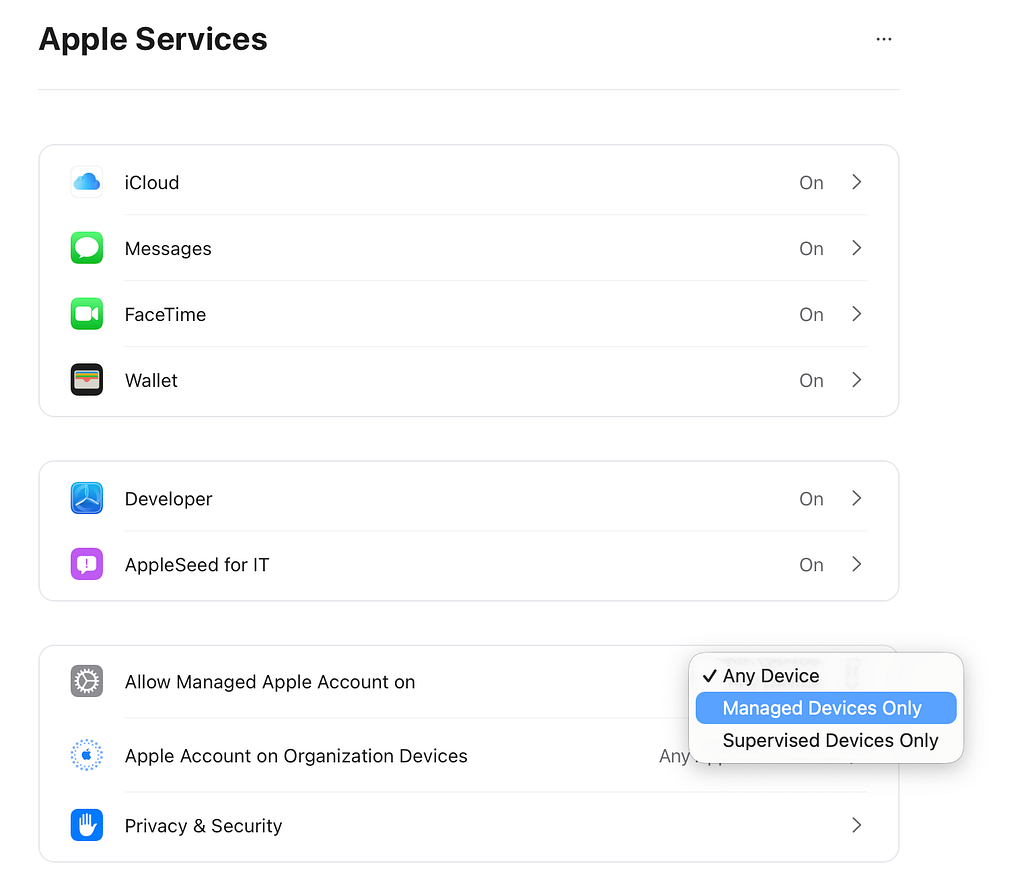
Regardless of whether you manage your devices with MDM, Apple Business Manager includes a section that allows you to control the use of Managed Apple Accounts and what services will be accessible through Managed Apple Accounts; Access Management.
I’m writing a few small examples of how this field is used so you can understand general usage scenarios.
You can choose whether Managed Apple Accounts can be used to sign in only to managed devices.
• You can require that users sign in to corporate-managed devices only with a Managed Apple Account.
• You can decide whether users can use iMessage and/or FaceTime with their accounts.
• You can enable or disable all iCloud services for users. For example, you can disable iCloud Photos, iCloud Drive, iCloud Backup, or iCloud Keychain for all accounts.
We can apply all these features directly to Managed Apple Accounts through Apple Business Manager, independent of any management that can be done with MDM.
Is there a difference between a Personal and Managed Apple Account?
Yes. There are many differences in usage. Managed Apple Accounts are designed for use in corporate environments, so they do not provide access to some Apple services that require personal use. You can learn in detail which services a Managed Apple Account can access and which are restricted from Apple’s article. But to briefly list a few important differences;
• They cannot access the App Store. The process of installing applications on corporate devices is managed via MDM.
• They cannot activate the Find My feature.
• They cannot access stores such as the iTunes Store and Apple Books.
• They cannot be used to sign in to an Apple Music subscription.
• They cannot be used to sign in to AppleTV.
• They cannot have an email account with the iCloud.com extension.
If we look at what it can do rather than what it cannot do, we can list some items as follows:
• They can use many iCloud services. This includes iCloud Drive, iCloud Backup, iCloud Keychain, etc.
• Items such as Notes, Reminders, and Safari Bookmarks can be synced across devices using the same Managed Apple Account.
• All Continuity services are available. You can use your iPhone as a webcam, paste content copied from your iPad onto your Mac, use your iPad as a second screen for your Mac, and view and control your phone from your Mac’s screen using the iPhone mirroring service.
• You can join the Apple Developer program and/or join an existing developer team.
• You can use communication services like iMessage and FaceTime.
One more thing…
Managed Apple Accounts have another function beyond providing company employees with Apple accounts managed by the organization. This function relates to registering a personal device with MDM.
Let’s go through another scenario. Let’s say you are going to work at a company on a temporary assignment for 6 months. And during this time, the company will not provide you with a device, and you will use the devices you bring with you. Even in this case, the company may require your devices to be registered on their MDM server. For example, a Conditional Access policy may have been set up, and for the device to be able to access it, it must be registered with MDM.
There are four options for enrolling Apple devices in an MDM. The names of these options may vary depending on the MDM provider you use. Therefore, I am writing based on Apple’s naming convention:
1. Automated Device Enrollment
This option requires the device to be registered in Apple Business Manager and enables devices to automatically enroll in the MDM server registered with ABM. The Enrollment Profile is automatically sent from the MDM server to the device during its first startup.
2. Profile-Based Device Enrollment
This option is a method that can be used to enroll a device on the MDM server without resetting it if the device is in use by a user. Although not exactly the same, many restrictions and policies that can be applied with the Automated Device Enrollment method can be used. An Enrollment Profile delivered to the device to be enrolled on the MDM server is manually installed.
3. Account Driven User Enrollment
If the device to be enrolled on the MDM server belongs to the user, is unlocked, and is in use, this option is preferred. It is possible to enroll and manage the device on the MDM server in a manner compliant with GDPR to protect the user’s personal data. The Enrollment Profile is delivered to the device after logging in via an Apple account.
4. Account-Driven Device Enrollment
This is an option where the device is owned by the organization and an Apple account can be used instead of an Enrollment Profile for MDM registration. If the device to be managed is in Supervised mode, it provides the same level of management as Profile-Based Device Enrollment.
If you would like to read the Apple article on this topic, you can access it here.
Of these 4 options, the accounts mentioned in options 3 and 4, which are labeled “Account Driven” (meaning registration via account), are Managed Apple Accounts. A user’s Managed Apple Account is created in Apple Business Manager.
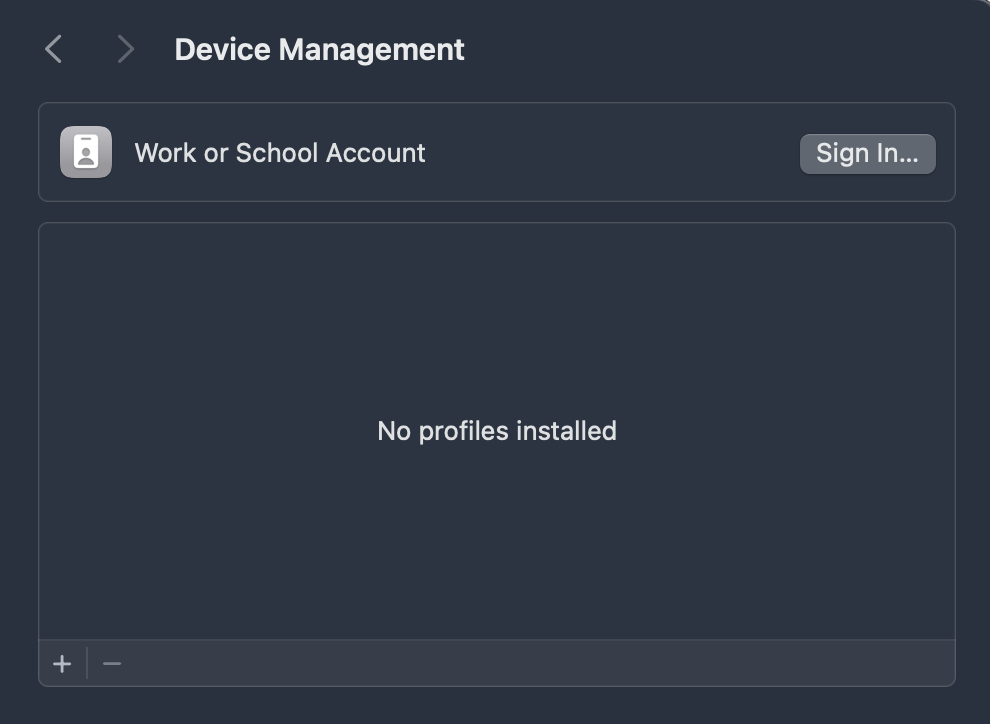
If proceeding with option 3, the device can be registered to the MDM server by signing in to the Sign In to Work or School Account section found in the Settings app under General / VPN & Device Management (iOS & iPadOS) or General / Device Management (Mac).
If proceeding with option 4, the device can be registered to the MDM server by entering the Managed Apple Account provided by the organization in the Apple Account section of the Setup Assistant screens when the device is first turned on.
For both options, there is a preparatory step to ensure that the device can access the URL where it can retrieve the MDM server’s Enrollment Profile. Therefore, having only a Managed Apple Account created through ABM and a functioning MDM server is not sufficient for this process.