

To manage Apple devices with any MDM, you must obtain the Apple Push Notification Service certificate from Apple and set it up on your MDM server. This simple but important step will enable communication between your MDM server and the devices you manage.
First, the Basics
What do APNS servers do in a nutshell? They act as a mail carrier between the MDM server and managed devices. A change made on the MDM server (such as the command to install the Slack app) is not sent directly to the devices. It is sent to the APNS server. APNS servers send a notification to the managed device. When we say “notification” don’t think of a notification like Amazon’s “November Sales Have Begun”. The device that receives the APNS notification contacts the MDM server and retrieves the command, application, or profile designated for it.
Apple is gradually moving away from a device management approach tied to APNS servers and transitioning to a new generation of Declarative Device Management. However, we remain dependent on APNS until this transition is complete.
Both your MDM server and the devices you manage must be able to access APNS servers through specific ports. The MDM server must be able to access APNS via TCP port 2197, while managed devices must be able to access it via TCP port 5223. Additionally, there should be no firewall rule blocking traffic to Apple’s 17.0.0.0/8 IP block.
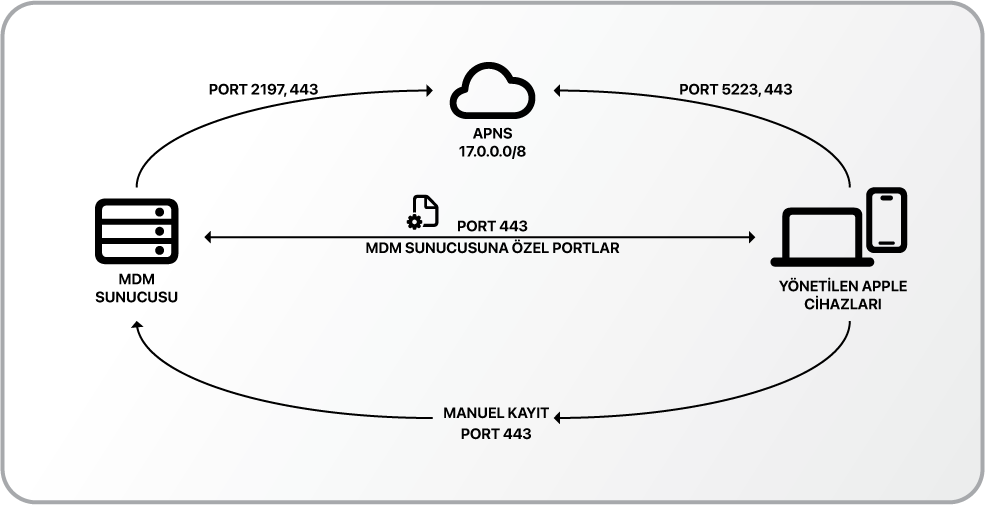
- Apple devices access the MDM server via TCP port 443 to get the enrollment profile.
- The MDM server notifies the APNS servers via TCP ports 2197 and/or 443 that a command change has occurred on its end. At this stage, no content (app, profile, etc.) is delivered from the MDM server to the devices.
- The APNS server sends information to managed devices via TCP port 5223 that a command exists on the MDM server associated with them. If communication cannot be established via port 5223, port 443 is used as a fallback.
- Managed devices connect to the MDM server using TCP port 443 and retrieve the content prepared for them. At this point, the MDM server’s own dedicated ports can also be used instead of 443. Microsoft Intune does not have any specific port requirements.
You can find the Apple article on this topic at this address. https://support.apple.com/en-us/102266
Configuring the APNS certificate in Intune
- First, sign in to the Microsoft Intune Admin Center. https://intune.microsoft.com/
- Choose the Devices / iOS/iPadOS / Enrollment option from the left column.
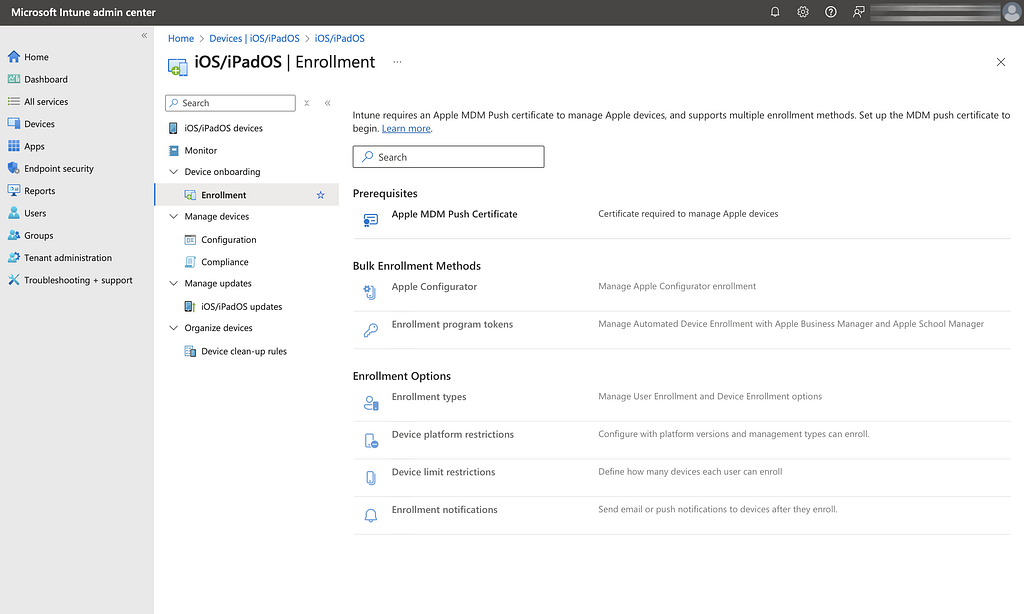
3. Click the Apple MDM Push Certificate option
4. On the screen that pops up, as a first step, grant permission for Microsoft to send data to Apple via Intune.
5. Download the CSR (Certificate Signing Request) file in step 2 of the opened screen. A file named IntuneCSR.csr will be downloaded.
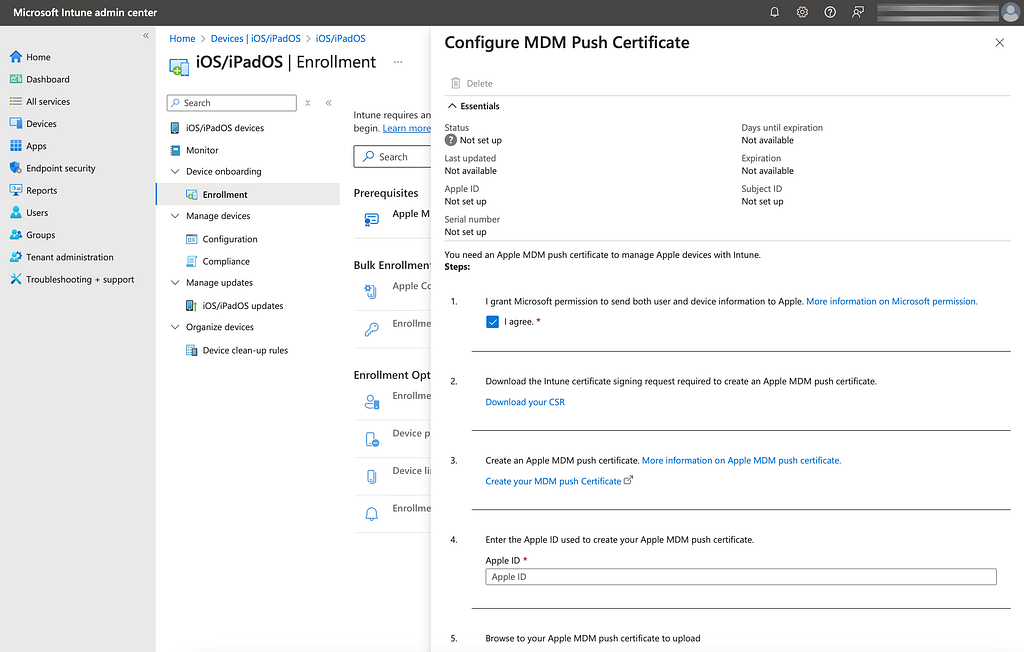
6. As a next step, you need to upload the CSR file you downloaded to the Apple Push Certificates Portal. To do this, click the Create your MDM push Certificate command shown in step 3 to navigate to the Apple Push Certificates Portal.
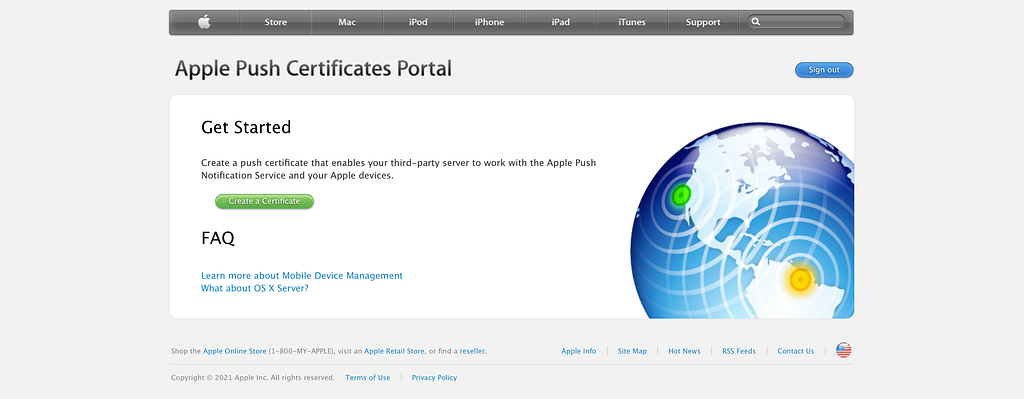
An Apple Account is required to log in to the Apple Push Certificates Portal. This Apple account can be a personal Apple Account. However, this is not recommended. You must renew your APNs certificate once a year, so I recommend logging in with an Apple Account that you can access under any circumstances. Using a Managed Apple Account registered in Apple Business Manager instead of a personal Apple Account would be much more secure.
7. If this is your first time logging into the Apple Push Certificates Portal, the portal will look like the image above. If you have previously generated certificates for other MDM servers, you will see a list of those certificates. You can start the process by clicking the Create A Certificate button. At the next step, you need to review Apple’s terms of use and check the box to agree.
On the next screen, you will see a screen where you can upload a CSR file signed by the vendor. Upload the IntuneCSR.csr file you downloaded from Intune here.
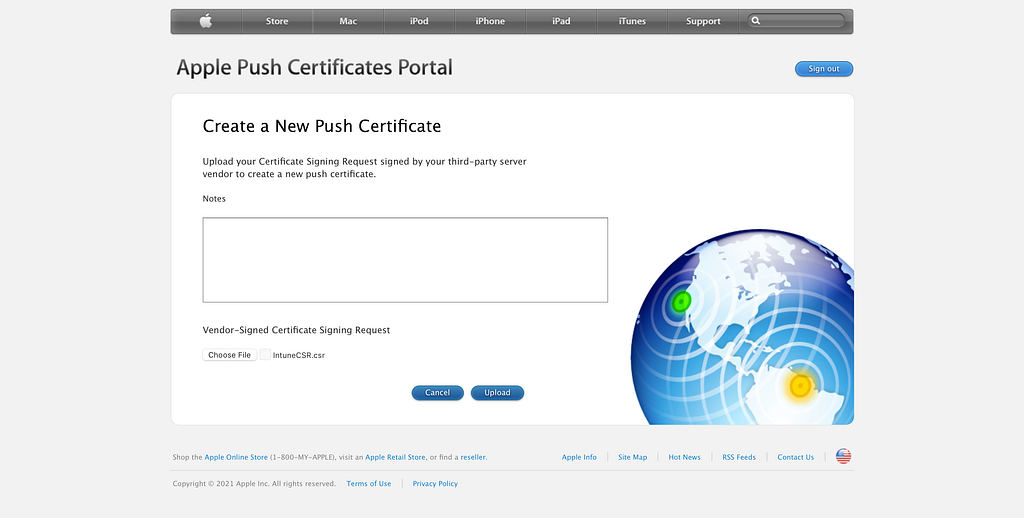
8. When you click the Upload button to continue, a screen will appear where you can download the certificate. You can download the .pem extension certificate by clicking the Download button.
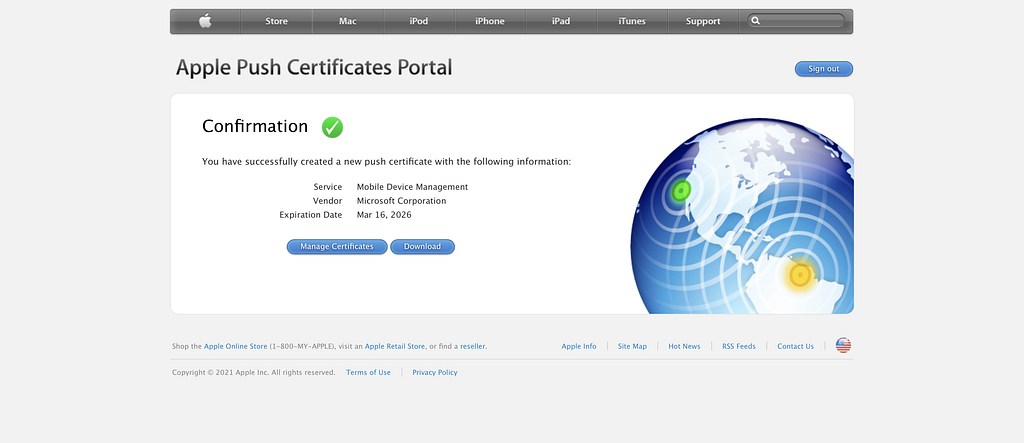
9. At this point, you need to return to Intune and install the certificate you downloaded from the Apple Push Certificates Portal. In Intune, at step 4, you need to enter the Apple ID you used to log in to the Apple Push Certificates Portal. This is a simple but important detail. I wrote about the importance of this issue at the bottom of the article under the heading, “What happens if you don’t renew your APNS certificate?”
In Intune, at step 5, you must also upload the .pem certificate you downloaded from the Apple Push Certificates Portal.
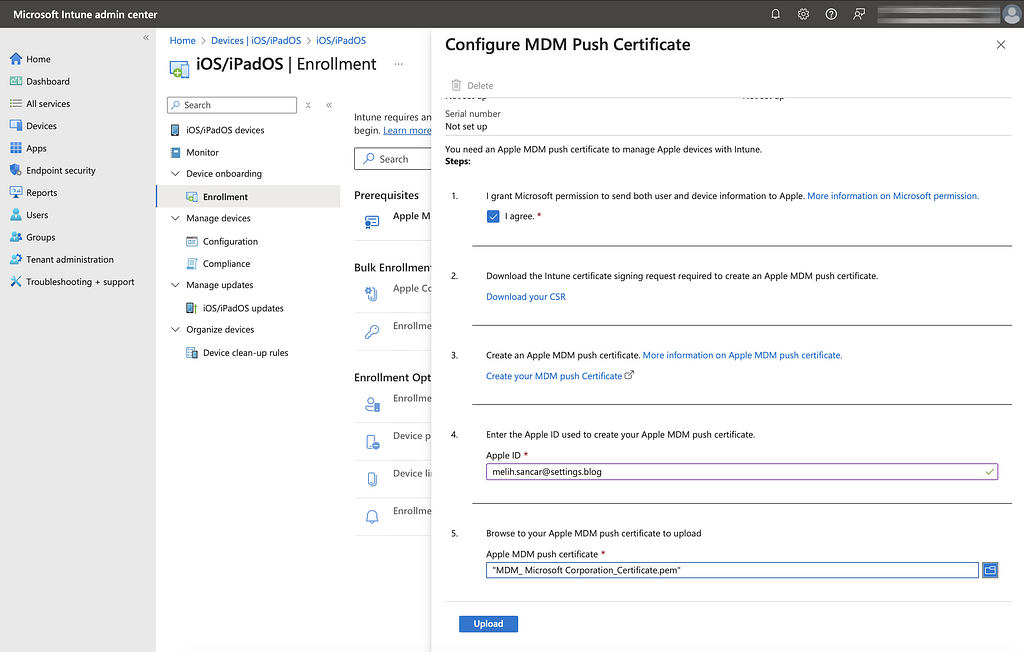
10. After the installation is complete, you will have finished setting up the APNS certificate. From this point on, some previously inactive areas in Intune will become available. For example, you can now start using the Enrollment Program Tokens section to connect Intune with Apple Business Manager.
What happens if you don’t renew your APNS certificate?
The APNS certificate must be renewed annually. Therefore, I recommend that you note the expiration date in your calendars. As the expiration date approaches, Apple will send you renewal reminder emails to the Apple Account you use for login, 30 days and 15 days prior to the renewal date.
If for any reason you do not see these emails and do not renew the APNS certificate before its expiration date, the commands you send to devices managed via MDM will not be delivered. However, profiles, applications, and restrictions sent up to that date will remain applied.
At this point, I want to give you a worst-case scenario. Your APNS certificate renewal date has come and gone, and you haven’t renewed it. On top of that, you have no idea which Apple Account you used for APNS. This is where you run into some problems. As you can see in the steps above, when creating the APNS certificate in the Microsoft Intune Admin Center, Intune already asks us which Apple Account we are using and records it.
However, if for any reason you don’t know what that Apple Account is or you don’t know the password for that account, then you cannot renew the APNS certificate. Since the certificates on the devices you manage were created with the account you first created a year ago, creating a new clean slate with a completely new Apple Account is not an option for you either. Because if you do that, you will be in a situation where you have to re-enroll all the devices you manage into MDM. Yes, you read that correctly, your communication with all the devices you manage will be completely cut off.
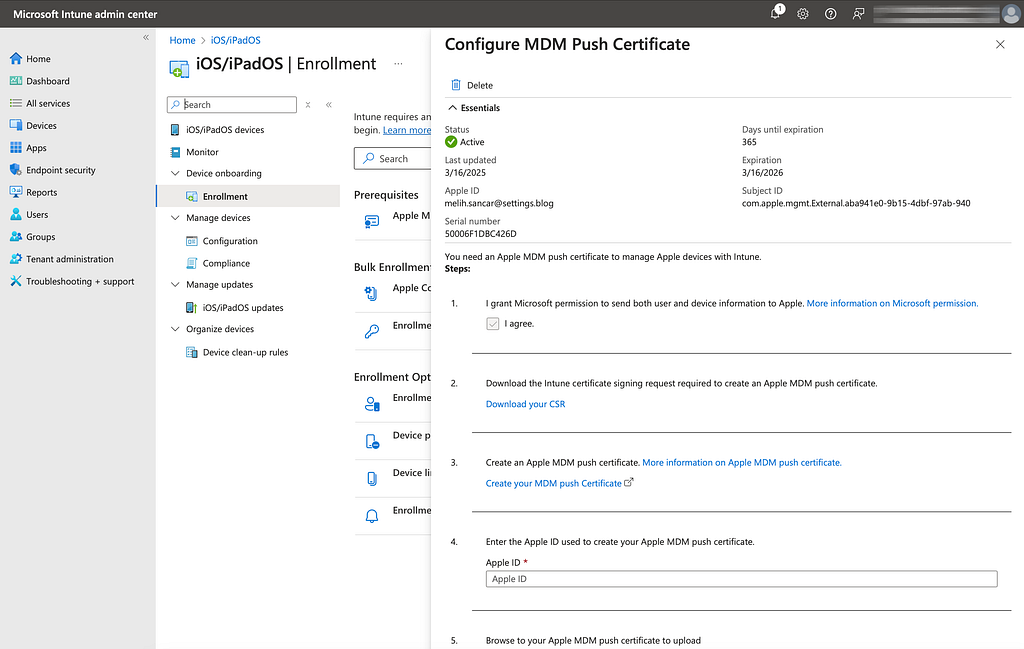
If you are experiencing an issue with the Apple Account associated with your APNS certificate, you can contact Apple for support by calling the numbers listed at https://support.apple.com/en-us/118629. Apple may ask you for information such as the Serial Number and Subject ID of your APNS certificate. You can find this information in the details of your APNS certificate, as shown in the last screenshot above.